
Last update: version 1.3.1 – March 15, 2026)
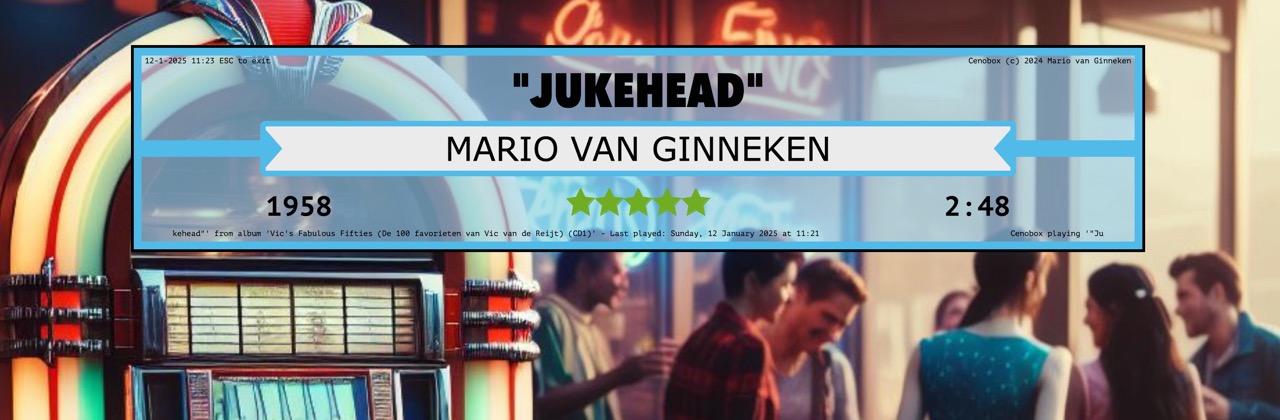
Use Jukehead to:
– manage record collection
– print jukebox title strips
– Discogs search & info
– assign records to a jukebox
– print and export lists
… and much more!
And it’s totally free for Windows & Mac with full features!
Scroll further down for installation help and program manual.
Do you want to receive a notification with new updates and tips & tricks? Subscribe yourself to the Jukehead Mailing list. No spam, only useful info!
Installation Windows
Download Windows version here.
Click on the link and when Dropbox opens, choose the Download icon on the top of the page (arrow down). Unzip the file and copy the Jukehead folder to the Program files folder (ignore the _MACOSX folder if it should be there). Inside this folder is the Jukehead.exe program.
If you’re updating a previous version: you can override all files with the downloaded ones, al data and settings are safely stored elsewhere.
Don’t forget to download the title strips, scroll down for the download link.
Installation Mac
Download Mac version here.
Click on the link and when Dropbox opens, choose the Download icon on the top of the page (arrow down). Unzip the file and copy the Jukehead program to your Apps or Programs folder.
If you’re updating a previous version: you can override all files with the downloaded ones, al data and settings are safely stored elsewhere.
Don’t forget to download the title strips, scroll down for the download link.
Mac: Running Jukehead for the first time after update or installation
When you run Jukehead for the first time, it might be possible that Windows/Mac OS-X prevents you to run it (“developer not verified/unknown download location, bla bla…”) but you can ignore this. On Mac, you can RIGHT-click the program file and choose OPEN from the menu. You’ll get a warning: again choose OPEN. This normally happens once.
For Mac users with MacOS Sequoia 15.0
Users will no longer be able to Control-click to override Gatekeeper when opening software that isn’t signed correctly or notarized. They’ll need to visit System Settings > Privacy & Security and allow the app to run there by clicking the button next to it in the bottom of the menu.
Title Strips / Labels
Download the title strips / labels here.
Click on the link and when Dropbox opens, choose the Download icon on the top of the page (arrow down). Unzip the file and copy the folder named “Labels” to your Documents or Jukehead folder (you will point Jukehead to it from the Title Strips screen).
Title strips / labels folder
For clarification: during Jukehead development I switched from using the term “Labels” to using “Title Strips”, so the folder containing the Title Strips is still named “Labels”.
I suggest you put your Labels folder in your Documents folder. If you’re afraid you might forget what it’s for you might rename it Jukehead labels. After renaming or moving the labels folder, open: Screens -> Title Strips and in the bottom choose Select Title Strips folder to let Jukehead know where the title strips are.
Click here to check out the Facebook group to get updates on what’s happening with Jukehead!
First time use
When you run Jukehead for the first time, it will create a new database. You start with an empty database and are ready to enter your collection! The location & name of this database file is shown in the top of your screen. If you want, you can copy this file to a safer location like a cloud service folder (Dropbox or Pcloud) that has offsite backup and version history, so you can roll back if you should make an error or damage your database file. When you have moved your database file “Jukehead.rsd” to a new folder, just drag & drop it on Jukehead’s interface and the software will then know it’s new location. The program will restart and use the new location from now on.
To move your database: choose pull down menu Screens -> Settings and choose “Show settings folder”. The database file is in there and it’s called “Jukehead.rsd”.
Jukebox(es)
From the pull down menu, choose Screens -> Jukeboxes and locations. Here you can see your jukebox(es) or other locations your records can reside, like a friends’ house, a storage unit or your basement. Also shown are the amount of records on every location. In this screen you can also add new locations and edit existing ones. Each location will have it’s own number ranging from 1 to 97. Keep 0 for records that are not in a jukebox or specific location. Use 90 for your wish list and 98 is used for newly imported records, 99 is reserved for the trash can (deleted records until final deletion).
The Mediaviewer and Discogs Discovery
These two screens help you see extra information about your records. The Mediaviewer shows cover art about the record you select. The Discogs Discovery screen also does this, but much more: it shows other versions of the record and you can click in the screen on the other versions and see the cover art with it to check if you have the correct version in your database. If you’ve selected another record, you can copy that info back to your database with the “To Main Screen” button. This way, you can also add new records to your database: type in Title and Artist in the Discovery screen, followed by “Enter” and it will search info on that. With the “To Main Screen” button you can copy this info as a new record, if you like (just be aware that the fields in the main screen are green, otherwise you will copy the info over an existing record! If the fields are still blue, click on button “New”).
Entering records manually
In the bottom fields you can enter or correct your records. When the entry fields are green, you’re entering a new record to the collection (with button “New”). When they are blue, you are correcting an existing record you selected in the list above. Use your TAB key to jump to the next field or just click a field you want to enter/correct. With “Save” everything will be stored in the database and you will see the last edited record show up in the list with a yellow background (unless you have a filter active that mutes this record out). All editing fields will be cleared and they are green now, so you can enter a new record.
Entering records using the Discogs online database
You will need an active internet connection for this feature.
If you type in the catalogue number of the record and press enter, Jukehead will look up the number in the Discogs online music database and show you the first hit in the data fields and the remaining hits in the pull down menu next to the Cat.nr. field. You can select the correct version of this record and when you choose it, all info on that song will be entered in the fields so you won’t have to type it in. If you get too many hits, you can also add some extra info, like “Rolling” in the Artist field or “Love” in the A-side field. It is even possible to only enter a title and/or artist without catalogue number to search Discogs. Just experiment with this and see what results you’ll get!
To see the Discogs page on the record you’ve selected, click on the “Show Discogs” button.
Using the catalogue number, Jukehead will also warn you if you try to save a record you already have in your database (based on similar catalogue numbers). You can ignore this if you have multiple records with the same catalogue number.
The collection list
The central piece of your screen shows your collection list. When you start Jukehead, your whole collection is shown. You can manipulate the records shown in different ways. You can click on the header of a column to sort your records on that column. You can also pull the columns wider or more narrow at the headers and doing so from the most right side you can pull columns onto the screen that are hidden (Cat#, Discogs#). Jukehead will remember the settings of your column widths.
Using filters
You can use a filter to select the records shown in the list. In the top of your screen you will find the tools for that. In the top left “Filter” text field you can type (part of) a title or artist to search for, but (manipulating the pull down menu left of it) you can also filter on Genre or Label.
The pull down menu on the right of it (“Show all locations”) lets you select records from a specific jukebox or location.
Next to that is a pull down menu that allows you to only see the Selected or Unselected records (this is based on the checkbox “Selected”).
Next to that is a pull down menu that enables you to select only specific formats, like 10″ or 7″.
Next to that is a filter called “Year” that helps you select records from a specific year (fill in one field) or a period (fill in both fields, lowest year on the left side).
Remember that filters combine! So searching for “Elvis” and selecting a specific jukebox only shows Elvis records in that jukebox.
These filters are not only useful for finding records, but also for printing labels, printing lists, creating export lists and executing so called “Mass Edit Commands” because these actions are all based on the records shown in your Collection List.
Double
This selection will show records in yellow if you have more then one of the same, based on catalogue number.
Selected or unselected
Each record has a checkbox called “Selected” (column “Sel” in the Collection List). It’s only functionality is helping you make a quick selection of records to do something with, like move to a jukebox, print labels for or export to a list. You can use the pull down menu “Only Selected” for that purpose.
For making multiple selections quickly you can click the checkboxes in the column “Sel” in the Collection List. You can also run a filter (e.g. search for “Beatles”) and choose the pull down menu: Mass Edit -> Set Selected=Yes. The setting of this checkbox is stored, so next time you open Jukehead the Selection state is stored for all records.
Title strips / labels for your jukebox
Jukehead has a selection of Title Strip files, but you need to download them separately. You can also add your own JPG or BMP files or search the internet for image files to add. Just add them to the labels folder. I suggest using files with roughly the same width/height ratio as the ones that came with Jukehead.
Setting a title strip
From the pull down menu, choose Screens -> Title Strips. A screen will open and from this screen you can choose the following actions with the pull down menu at the top:
– As general title strip for all 45’s
– As general title strip for all 78’s
– As Individual for selected record in the Main Screen
– As individual for all filtered records in Main Screen
Drag and dropping on the interface will not work anymore from version 1.2.0 and up!
Printing Title Strips
From the pull down menu Print you can select Print Title Strips for the records currently shown in your Collection List. Use the filters to manipulate the list. You can use the Print Screen to change things like font, font size, label distance, column size, etc. Max. width (%) will set how far the text will keep clear from the edges of the labels.
The Y positions will set the vertical position of each line on the label and X Offset will put the text further to the right, based on the Print alignment: left or centered.
Printing or exporting lists
From the pull down menu Print you can select Print list/Export for the records currently shown. With the “What to do:” pull down menu you can choose to print a list, export a plain TXT file or export a CSV file you can import in software like Microsoft Excel. Below you can select the fields you want to print or export and in what order. When printing, you can play with the Widths of the columns printed. All this info will be stored for the next time you want to use the print/export option.
Importing a CSV file
Many of you already have your collection entered in Excel, Discogs or another piece of software. Most systems can export a “CSV” file. This is a text file with all data in it, separated by comma’s. Jukehead can import most CSV files and will put these records in the “98 Imported” location so you can manipulate all files with a mass edit or delete everything when the import went wrong without messing up your records that are already in Jukehead.
When you have created your CSV export file, start up Jukehead and choose “Import CSV file” from the pull down menu. You will see a new screen: choose the top button “Load CSV file”. You can now select a CSV file to import. After you have chosen the file, use the pull down menus to link the data fields (left) to a column of the CSV file (pull down menus on the right). The pull down menus sometimes contain understandable descriptions like “Artist” or “Year”, but they may also contain the actual data, like “Rolling Stones” or “1976”, that depends on the CSV file. Before you start the import, you can open the CSV file in a text editor or in Excel first to try and understand what each column is. This way you can separate the B-side from A-side, etc. When you are using a Discogs file, you may want to also read the next chapter (Importing your collection from Discogs), since that may require some extra actions.
After you have linked as many pull down menus as possible, click on the “Yes” button below. The “Yes” turns to “Import”, click the button again and Jukehead will start the import. This can take some time, especially on Windows systems (not sure why). I have seen nine minutes for a 3000 records collection imported on a Windows 8 laptop and ten seconds for the same collection on an Apple Silicon Mac. When the import is completed, Jukehead will bring you back to the main screen. You will notice that all imported records are now in the “98 Imported” location, so when you choose this filter in the top of your screen you will only see these records. You can then perform a mass edit on them (like move them all to “0 not in a jukebox” or to “99 Trash Can” when something went wrong with your import).
Importing your collection from Discogs
If you have your collection entered in Discogs, you can export that data to a CSV file on your computer. On the Discogs website, go to your collection and choose “Export” in the top menu. When you follow the instructions, you can download a file with the extension “CSV”. Now follow the instructions like described in the chapter “Importing a CSV file”, but with one important reminder: always connect the “Discogs release ID” pull down menu to “release_id”! You will notice that the Discogs CSV file is missing info (B-side of the record, country, etc.) so later on we will need to complete this data and Jukehead will be able to do that through the Discogs release ID. You can leave all other pull down menus unlinked if you like, all missing info will be completed in the Discogs scan.
Discogs scan
When the import is complete, set a filter to “98 Imported” so only the imported records are shown. You will see info missing, like B-side and stuff, but not to worry. From the pull down menu, choose Edit -> Discogs Scan. This will complete the missing info in your imported records. It will take time, since the Discogs website only allows 25 search queries per minute, so the program throttles the routine to this rate. Because of this, a collection of 3000 records can take up to 2 hours to complete (just leave it running overnight). You can always interrupt this, because Jukehead marks the records it has updated, so the next time you’ll start this routine again it will continue where it left off.
Settings (pull down menu below the label)
Access this from the pull down menu “Maintenance” and “Settings screen”. Here you can change the settings for Jukehead.
– max. width artist: this will show the percentage of the labels width to use,
– font titles: name of the font in which the titles are printed,
– font artist: same for the artist,
– size titles: maximum font size for the titles,
– size artist: maximum font size for artist,
– distance: how far all labels are printed from each other,
– printer DPI: 600, 300 or 72, I recommend you do not change this unless your printer prints your labels way too big or small,
– screen list font size: font size of the listbox in the middle of the screen
– Max. width (%) will set how far the text will keep clear from the edges of the labels.
– The Y positions will set the vertical position of each line on the label.
– X Offset will put the text further to the right, based on the Print alignment: left or centered.
Mass edit
This pull down menu allows you to change the records that are shown in your list. So be aware: every record shown in your list is manipulated! Use the filters to change the list so it only shows the records you want to change.
Encounter a problem? Please give me some feedback!
This program is a labour of love. I wanted to manage my vinyl collection and print labels and I love to program, so this was the result. And why not let other people enjoy? I created this software on a Mac, so this version is tested the most extensively. I did some minor testing on Windows 8 and 10, but it is possible that Windows users run into a bug, problem or quirk. If you do, please let me know and shoot me an e-mail! I will fix it as soon as possible.
Version history:
March 15, 2026: version 1.3.1
– Added label print scale to help people that could not get their labels printed in the correct size.
August 2, 2025: version 1.3.0
– New Discogs search routines when adding records: more & better results!
– Non-Roman letters (Chinese, Arabic, Cyrillic and characters like ñ, é, ç) are now readable
– New CSV import routines to fix crashes and with better results
– New Discogs Discovery screen show similar records and allows to copy this data
– Discogs Scan is now a separate thread: less crashes and program stays responsive
– Improved performance with large collections (less reloading of list)
– Many bugs fixed!
April 8, 2025: version 1.2.0
– New Title Strips screen, no more drag & dropping Title Strips
– Title Strips path now separated from database so moving Labels folder doesn’t break all links anymore
– New Print List/Export screen for CSV and TXT export and printing lists
– Genre/Label search
– Importing from Discogs now allows to skip the records already in Jukehead
December 16, 2024: version 1.1.1
– 78 title strips now available
– 78 / 10″ / 12″ records are now also found and imported from Discogs
– better title strip printing with more settings for user and now one routine for printing and preview on screen so both are exactly the same
– double sides can now be printed below eachother
– improved error handling on Windows with internet time-outs and title strip files not found
– new Jukeboxes/locations screen where you can manage these and see the total number of records (jukeboxes, storage places, friends’ house, etc.)
– improved database backup (back upped files now found in Settings screen -> Show settings folder)
– improved column widths in main list: changing column widths is now more logical
– Mediaviewer link now stored in database for faster loading and less Discogs traffic
January 17, 2023: version 1.0.30
– Unicode is now finally translated to readable characters (the “\u00e7” stuff Discogs sometimes returned in titles and artists)
– double records shown in yellow if you switch on this feature (based on similar Cat.nr.)
– more label pictures and better categorized to find a specific label
– you can now link a label to a (series of) record(s)
– records shown in green when a search filter is active
June 26, 2022: version 1.0.23
– bugfix in CSV import to also accept semicolon delimited files
June 8, 2022: version 1.0.21
– added import CSV and Discogs
– added Discogs collection scan
– moved many options to pull down menus
– added Trash Can
– improved Discogs search
– added Discogs info button
– even more improvements in Discogs search routine.
May 28, 2022: version 1.0.14
– updated database to SQLite (this version needs a database conversion)
– moved a lot of functions to pull down menu’s
– improvements in Discogs search routines
– added a lot of data fields like year, genre, price, A2 and B2 side and artist (you need to pull your windows wider that 1100 pixels to see these A2/B2 fields)
– added two export options
– moved settings to separate window you can open from a pull down window.
May 25, 2022: version 1.0.7
– print dialog now in English
– better Discogs search
– EP’s are now also presented correctly from Discogs
– fixed “empty database bug” when starting Jukehead for the first time and exiting it without adding data
– “Selected” value can now be changed directly in the listbox column
– width of columns in listbox is editable and stored (try it in the header of the listbox)
– added margins to top, bottom and left and right when printing to prevent printing outside of printable zone on some printers.
April 27, 2022: Started programming Jukehead
How Jukehead got created
When I got a large collection of vinyl from my father, I started looking around what to do with it. For many years it was just sitting in boxes because a jukebox was out of my reach. Then I discovered the relatively undesired era of the '70s and I was mesmerized by the designs of it's jukeboxes. There came a surge of daring models with bright lights and colors. In hindsight it looks like this dying industry wanted to go out with a bang. So I bought a 1972 Seeburg Bandshell Firestar  with some bugs in it for a nice price and I love it! A week after that it was followed by a Seeburg Olympian with even more stuff to repair so the bug finally got me...

I wrote Jukehead because I needed something to put my collection in so that I could browse websites and fairs to shop for missing records without buying stuff I already have. I also needed something to print labels with and since programming is another hobby of mine: here is Jukehead! Feel free to enjoy it.

Mario van Ginneken
Cenobyte

 Cenobyte
Is it possible to change the font colour?
LikeLike
Not at this moment, but it’s not a difficult feature to add I guess.
LikeLike